A knowledge graph is built at a desk. Reviewing it is a different activity, and it happens in different places: the train, the queue, the ten minutes before a meeting. Those minutes have a phone in them and no computer. Knogra now has a page for them.
What it does
Open a graph and you are on a map, the one the Helicopter view draws: one concept at the centre, its neighbours around it, every connection in the same direction it has on the desktop. Double-tap a neighbour and the map re-centres on it, with the same animation as on the desktop, so what you came from is behind you. Tap a neighbour once for a closer look at it. Back and Home are on the bar at the bottom.
Swipe left for the notes of the concept you are on, right for the quiz, which hides a share of the graph’s concepts and asks you to name them as you travel.
Nothing has to be set up. Every graph has a map, and the map on the phone is the map you already know.
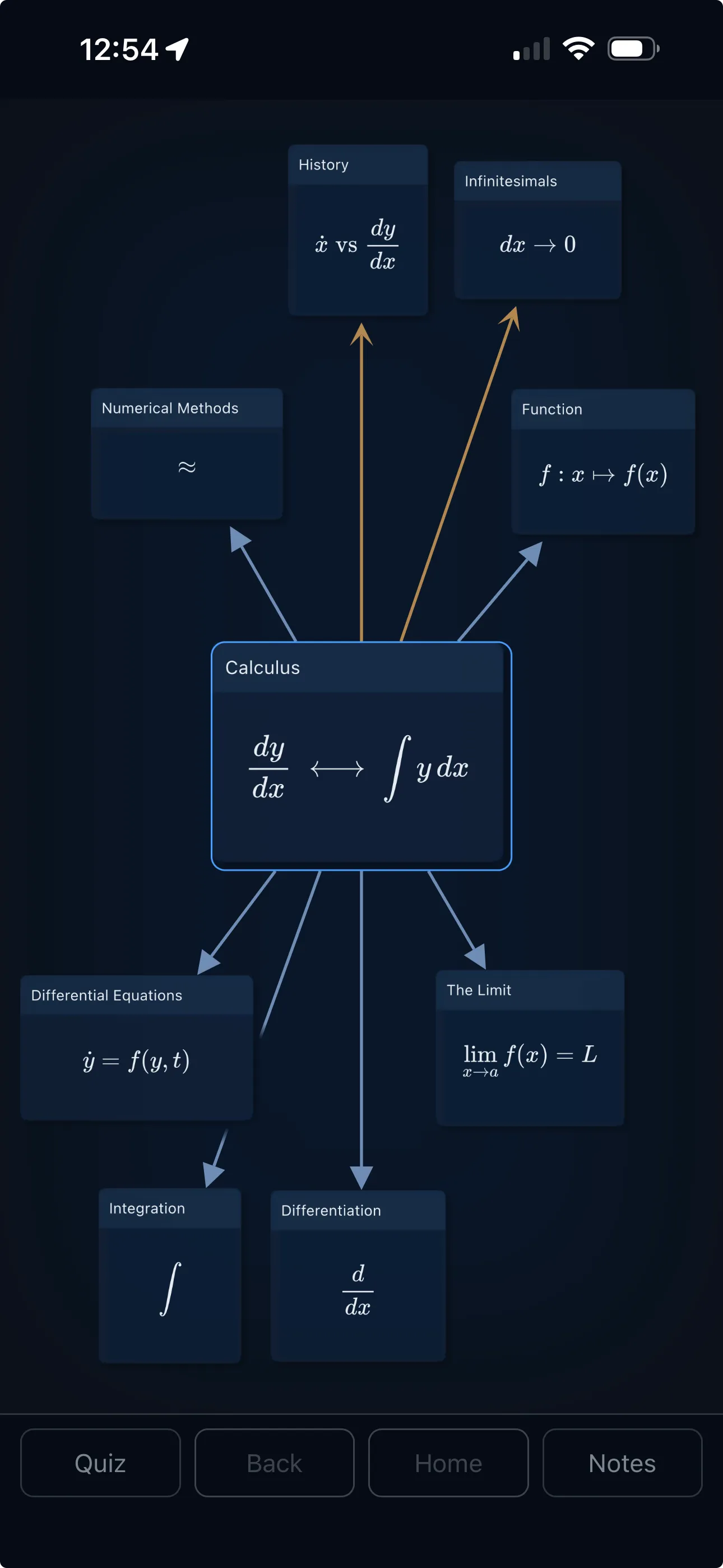
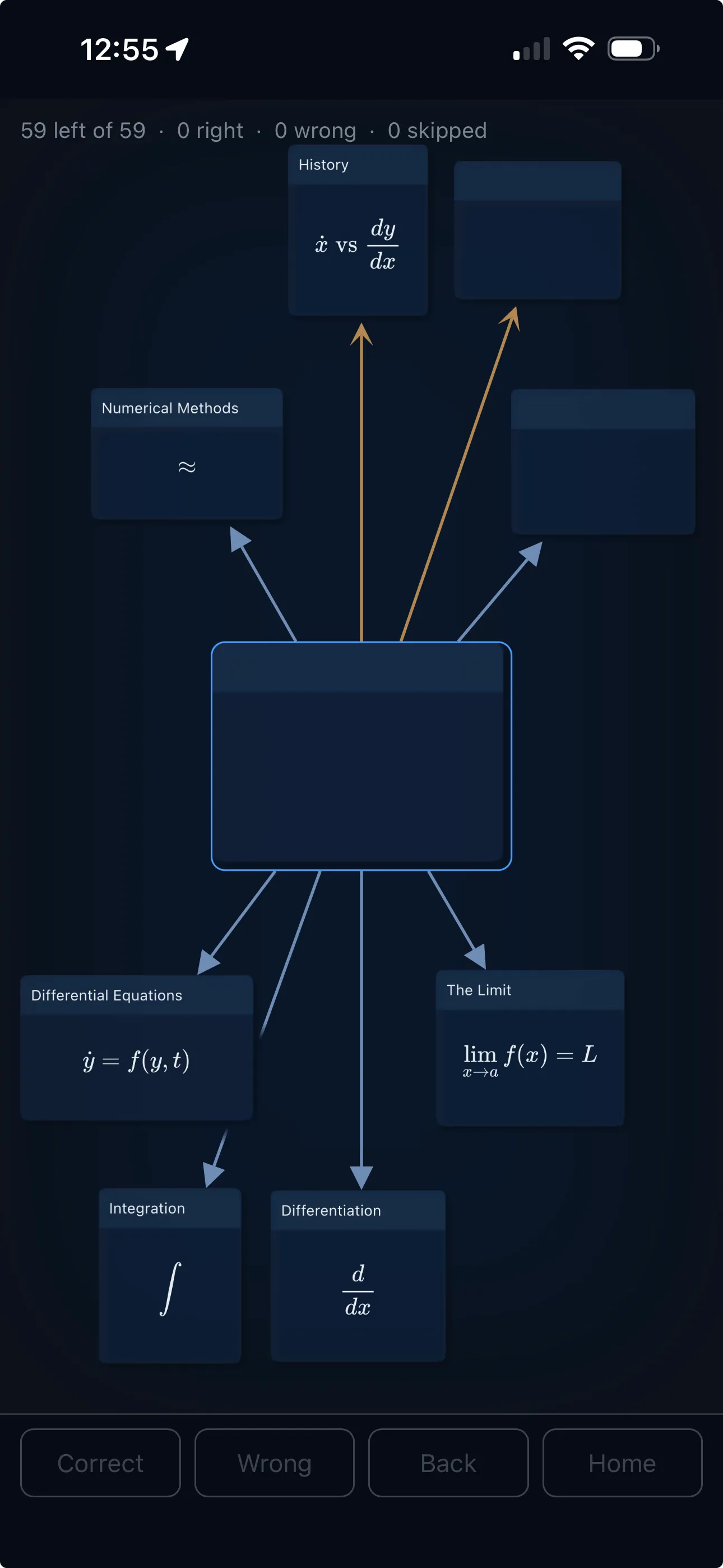
A companion, not a second Knogra
The phone viewer does not edit, and this is by design rather than by omission. Building a graph needs a big screen: you arrange a dozen concepts to make a point about them, place images and equations, keep several scenes in view while you decide where a new idea belongs. None of that fits on a phone, and a phone version that pretended otherwise would be a worse editor with a smaller canvas. So the desktop is where the graph is made, and the phone is where you travel it, read it and test yourself on it. Nothing you do on the phone changes the graph.
Getting a graph onto the phone
From the library on knogra.io: every graph has a View button on a phone. Tap it and the graph is on your phone.
Your own graph: export it from the desktop app as you normally do, and make sure the file is somewhere your phone can see, such as iCloud Drive, OneDrive or Google Drive. On the phone, open the viewer’s Library page and tap Open a file. The file picker shows every cloud your phone knows about, so it is one mechanism for all of them. A note for Mac users: the Documents folder is in iCloud Drive by default, the Downloads folder is not, so save the export to Documents or move it there once.
The phone holds one graph at a time; installing another replaces it, and the library is always one tap away.
Make it an app
Safari forgets a site’s data after a week without a visit. An icon on the home screen does not, and it opens the viewer without the browser’s bars, which also makes landscape usable. Three steps, once:
- Open the viewer in Safari, at app.knogra.io/view.html or through a View button in the library.
- Tap the Share button, then Add to Home Screen, then Add.
- Open it from the icon. It starts on its Library page, because an app on the home screen has its own storage, separate from Safari’s. Pick your graph there, or open your file, and it stays.
From then on the icon is the viewer, and the graph is there when you open it.
The gestures
| Do this | To |
|---|---|
| Double-tap a neighbour | Make it the focus |
| Tap a neighbour | See it up close |
| Swipe left or right | Go to the notes, or to the quiz and the library |
| Back and Home on the bar | Retrace your steps, or return to where the graph starts |
That is all of it. The desktop is where the graph is made; the phone is where it is kept in mind.