Start here to learn how Knogra works and why it exists. Build and navigate your first graph, discover what it's for and where it helps, and see how a spatial, scene-based map compares to outlines, mind maps, and ordinary diagrams. The fastest way to get productive.
Opens in the browser — no account, nothing to install. Yours to edit once it's open,
or download the file to keep.
Graphs are built for a large screen — open this one on a desktop computer.
Start here. This is the graph I would hand to someone standing over my shoulder asking what the
thing is actually for.
It answers the obvious questions in the obvious order — what Knogra is, why scenes exist, how
moving between them is meant to feel, and where a spatial map earns its keep over an outline or
a mind map. But it answers them inside the tool, which matters more than it sounds. You learn
how the app works by using the app, on a graph that happens to be about the app. Read a node,
move to the one beside it, and you have already used the only navigation skill you need.
Do not be careful with it. What you open is your own copy, nothing you do here touches anything
else, and undo works. Rename a node. Drag one somewhere it does not belong. Delete a connection
and put it back. The fastest way to stop being a visitor is to break something and fix it.
Half an hour in here and the rest of the library stops looking like a gallery and starts looking
like a set of workspaces you can take apart. If you would rather read than click, the
step-by-step basics guide covers the same ground on a page.
What's in this graph
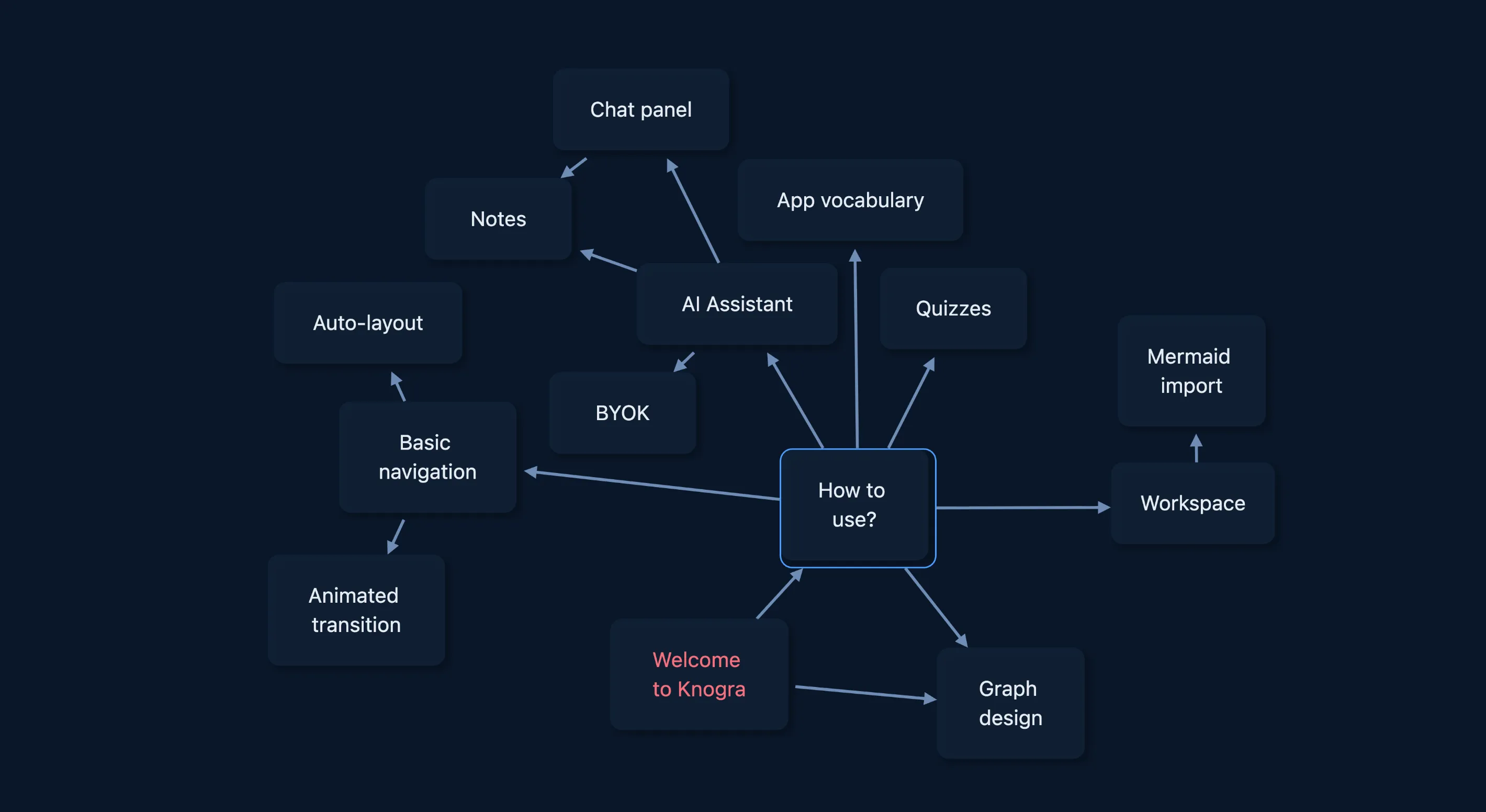
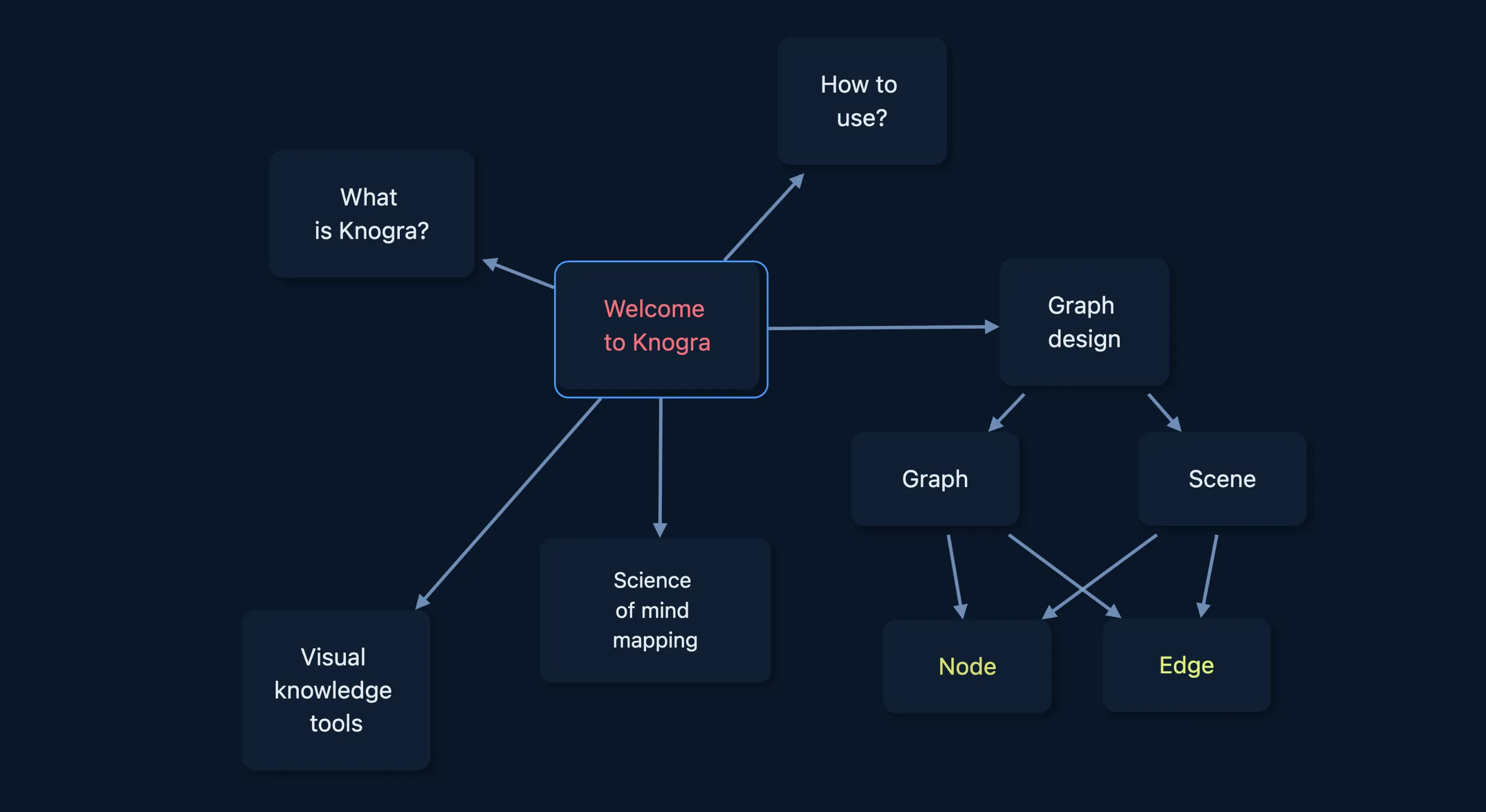
The map opens on Welcome to Knogra. These are the concepts branching from it — open one to
see the concepts inside it.
written article or notes
How to
use?
5 children · 9 grandchildren · 7 neighbours
AI Assistant
3 children: Notes, BYOK, Chat panel
3 grandchildren · 4 neighbours
Basic navigation
1 child: Auto-layout
3 neighbours
Workspace
1 child: Mermaid import
2 neighbours
App vocabulary
4 neighbours
Quizzes
1 neighbour
Graph design
6 children · 4 grandchildren · 9 neighbours
Scene
1 child: Edge
2 grandchildren · 6 neighbours
Edge types
2 neighbours
Graph
4 neighbours
Node design
2 neighbours
Tag-based styling
2 neighbours
Themes
1 neighbour
Science of mind mapping
4 children · 4 grandchildren · 8 neighbours
Folding nodes
1 child: Node
4 grandchildren · 3 neighbours
Animated transition
4 neighbours
Memory palace
1 neighbour
Spatial memory
1 neighbour
Visual knowledge tools
7 children · 9 neighbours
Concept mapping tools
1 neighbour
Diagramming tools
1 neighbour
Graph databases
1 neighbour
Literature
2 neighbours
Mind mapping tools
1 neighbour
Personal knowledge management
1 neighbour
Presentation tools
1 neighbour
What is Knogra?
3 children · 4 neighbours
About
1 neighbour
Roadmap
1 neighbour
Who is it for?
1 neighbour
The shape of this map
A tree linking 39 ideas would need 38
connections. This map has 56. The extra 18 open alternative routes throughout.
The map runs 4 levels deep from its root. Any two ideas are about 3.2 steps apart, and the two most distant are 6.
Neighbouring ideas are linked to each other 16% of the time — themes hold together rather than radiating separately.
Connections are typed, not plain lines. They come in 1 kinds: Related.
Most routes through the map pass through How to
use?, Visual knowledge tools, Graph design, Science of mind mapping, What is Knogra?, AI Assistant.
One node from the map
Welcome to Knogra
Getting around. To travel into a node's scene, double-click it — or select it and press G, or right-click it and choose Go to scene. A scene is a focused view with that node at the center, surrounded by related concepts. The transition is animated: shared nodes slide to new positions, new ones appear, irrelevant ones fade out. This keeps you oriented as you move through the graph. Explore in any order — there is no "correct" path. Follow your curiosity. If you get lost, click the Home button (top-left) to return here.
This continues inside the graph, along with 38 other nodes.